What you need
You need access to the chapter’s Team area. If you cannot see Team or Add team member, ask your chapter lead or communityX Community Manager for help.Before you add someone
Confirm these details before you send an invite:- Their email address
- The role they will take on
- The responsibilities they will own
- The support person they can contact with questions
Choose the right role
Select the role that matches the work the person will own. Before you send the invitation, confirm what that role allows them to do in the chapter workspace. If the responsibilities are unclear, agree on them with the chapter lead first.Add a team member
1
Navigate to Team
Sign in to the communityX dashboard. Open the chapter you lead, then go to Team from the sidebar.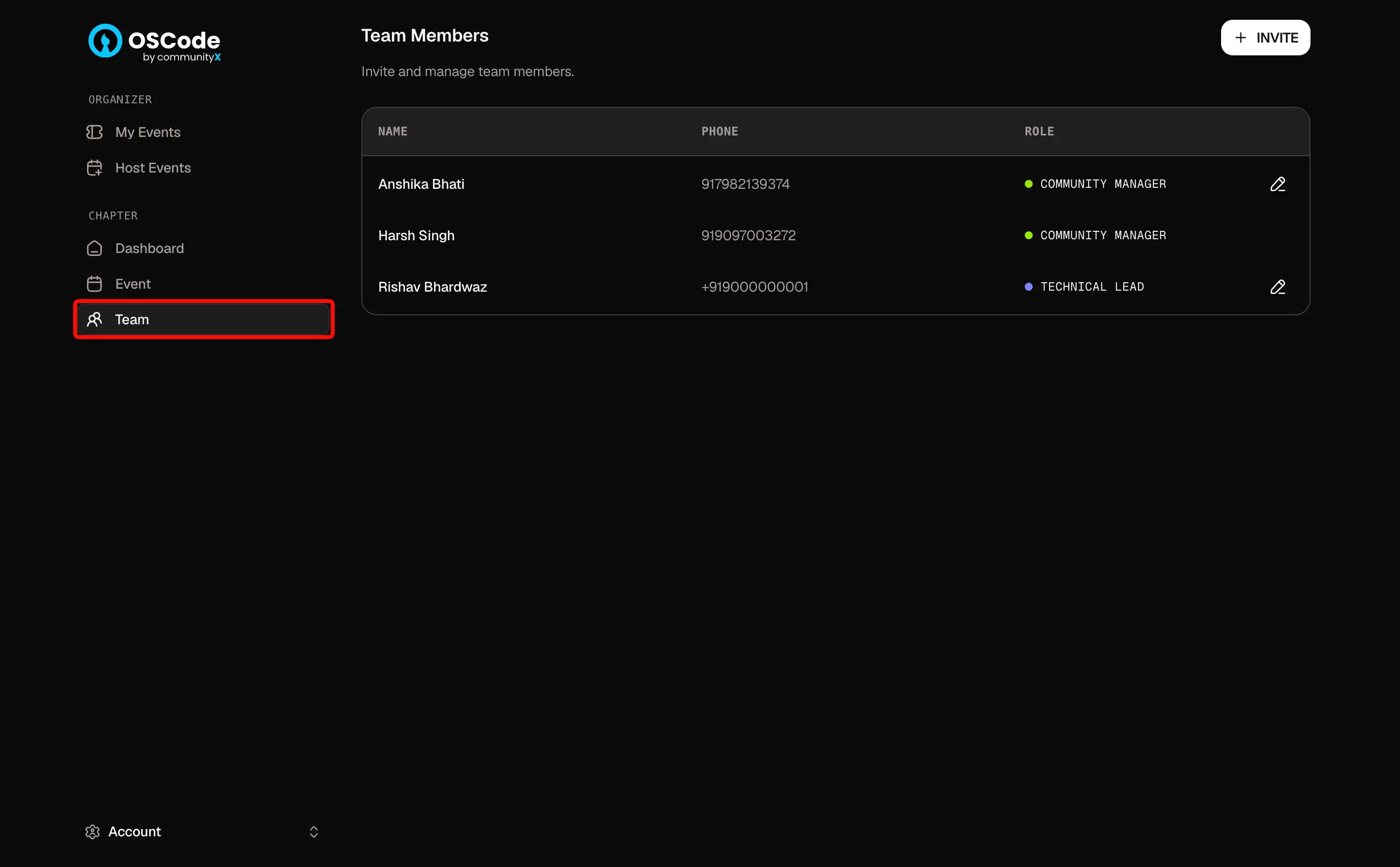
2
Start an invitation
Select Add team member. Enter the person’s email address and select the appropriate role, if prompted.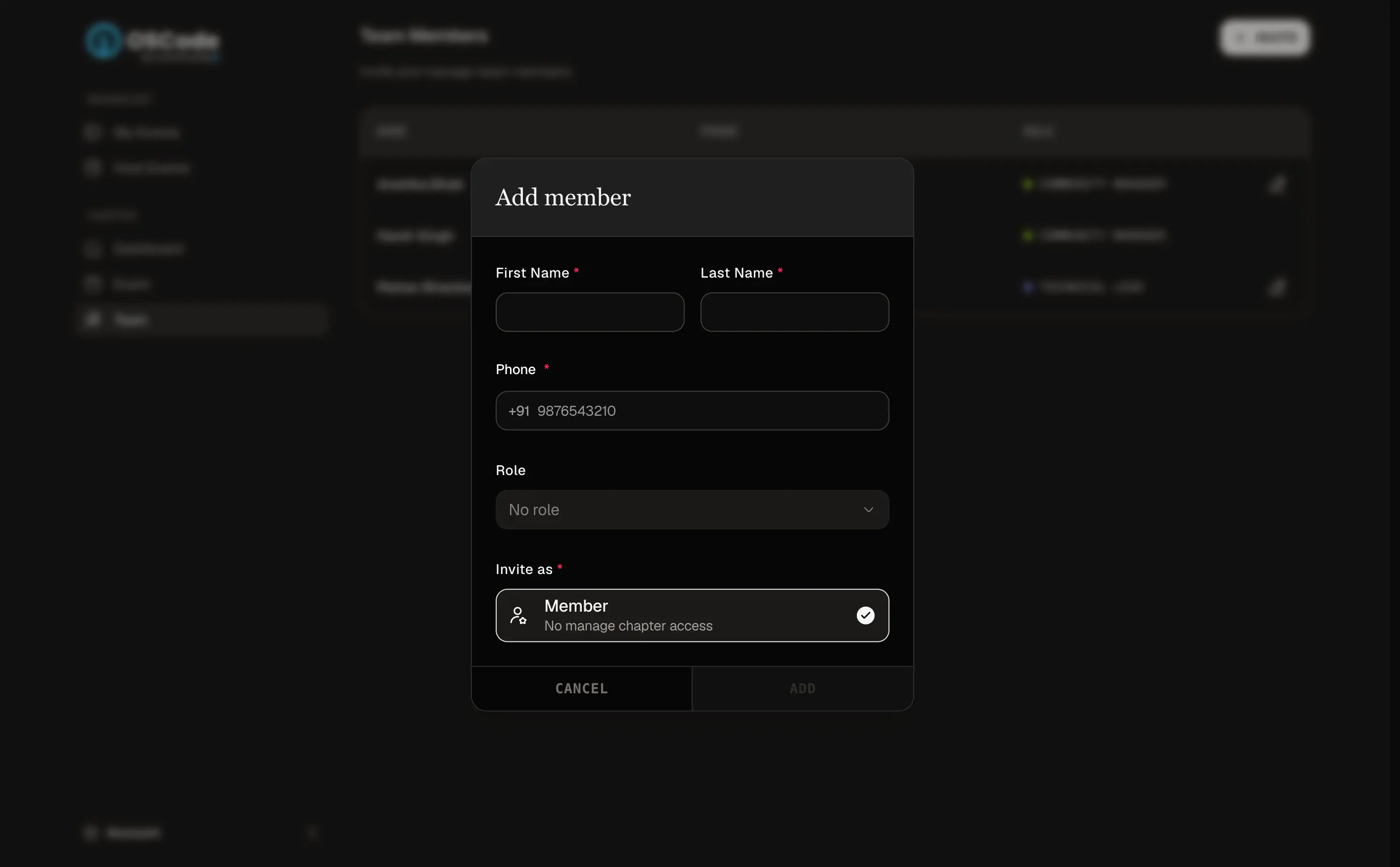
3
Send the invite
Review the email address and role, then send the invitation. Let the person know to check their inbox and accept the invite. Do not assume they have access until they accept it.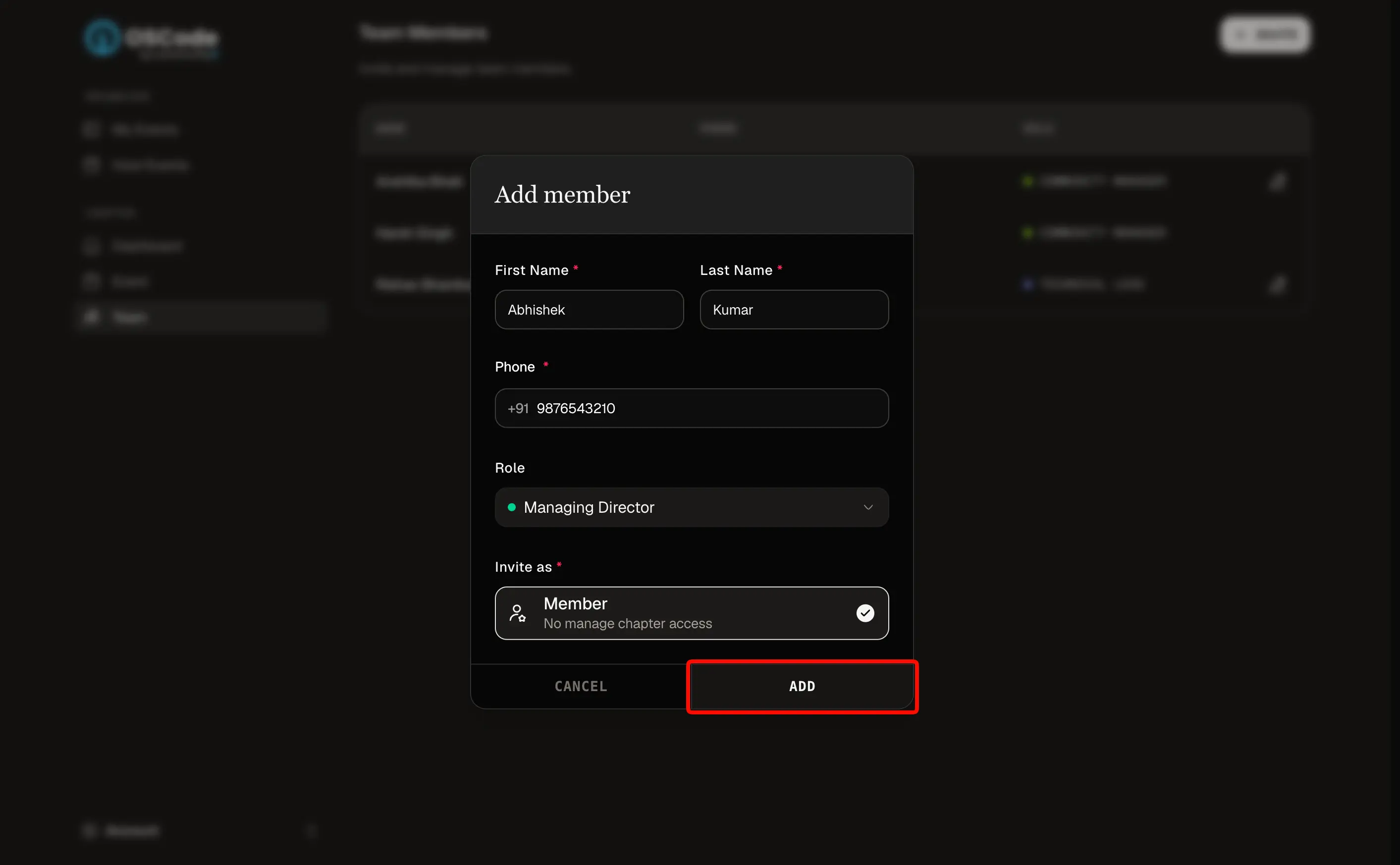
4
Confirm they have joined
Return to Team after they accept. Confirm that their name and role appear correctly.
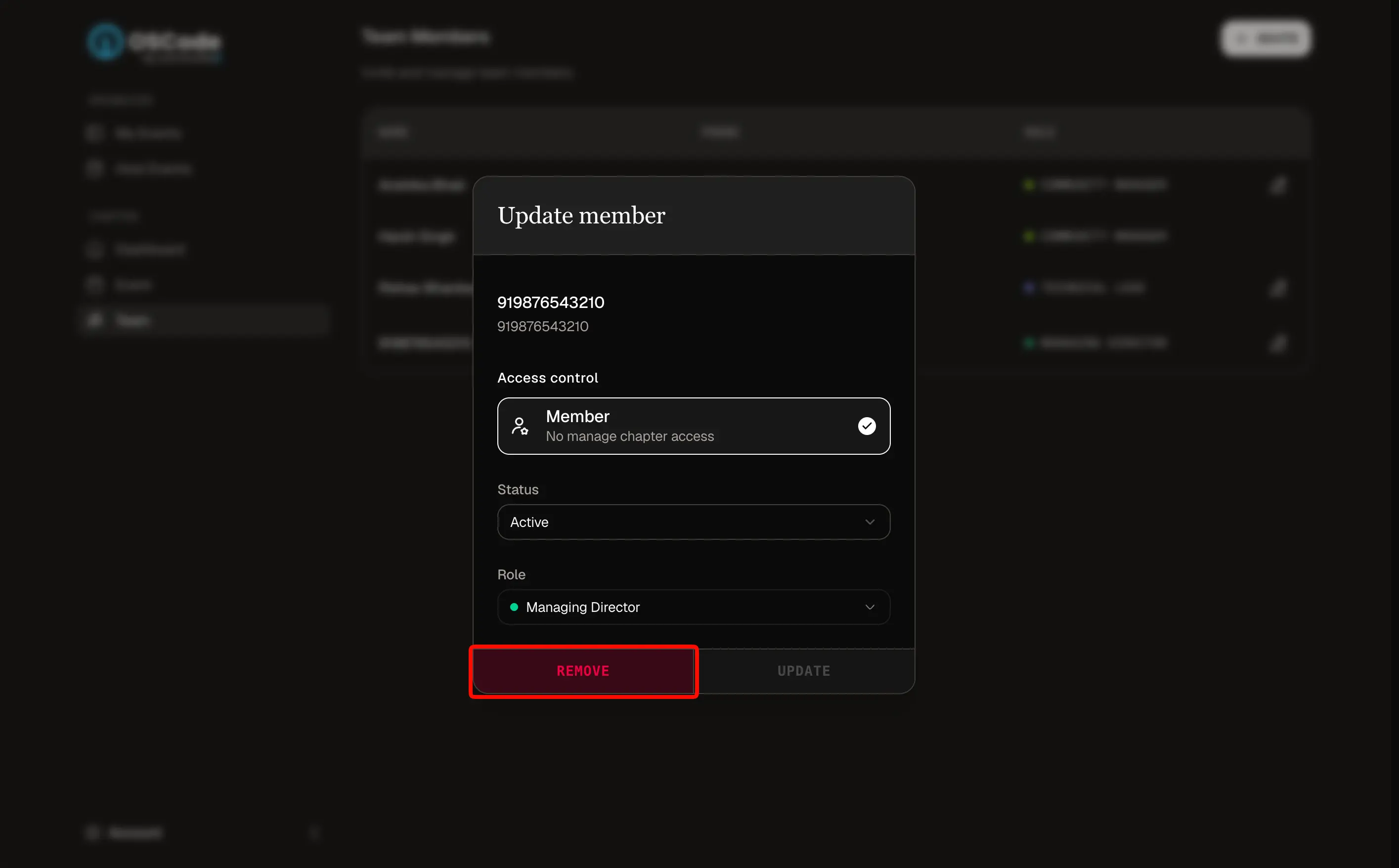
Remove a team member
Remove a member when they leave the team or no longer need chapter access. First, transfer their open tasks, event details, partner conversations, and shared files to another owner. Then remove their access from Team and any chapter communication channels. Check that the person no longer appears as an active member before you consider offboarding complete.